Introduction
In From Clean White to The Blues I mentioned a new Apps section and that the first one was SnugCut. This post is the proper introduction: what it is, how it came together, and a tour of what it does.
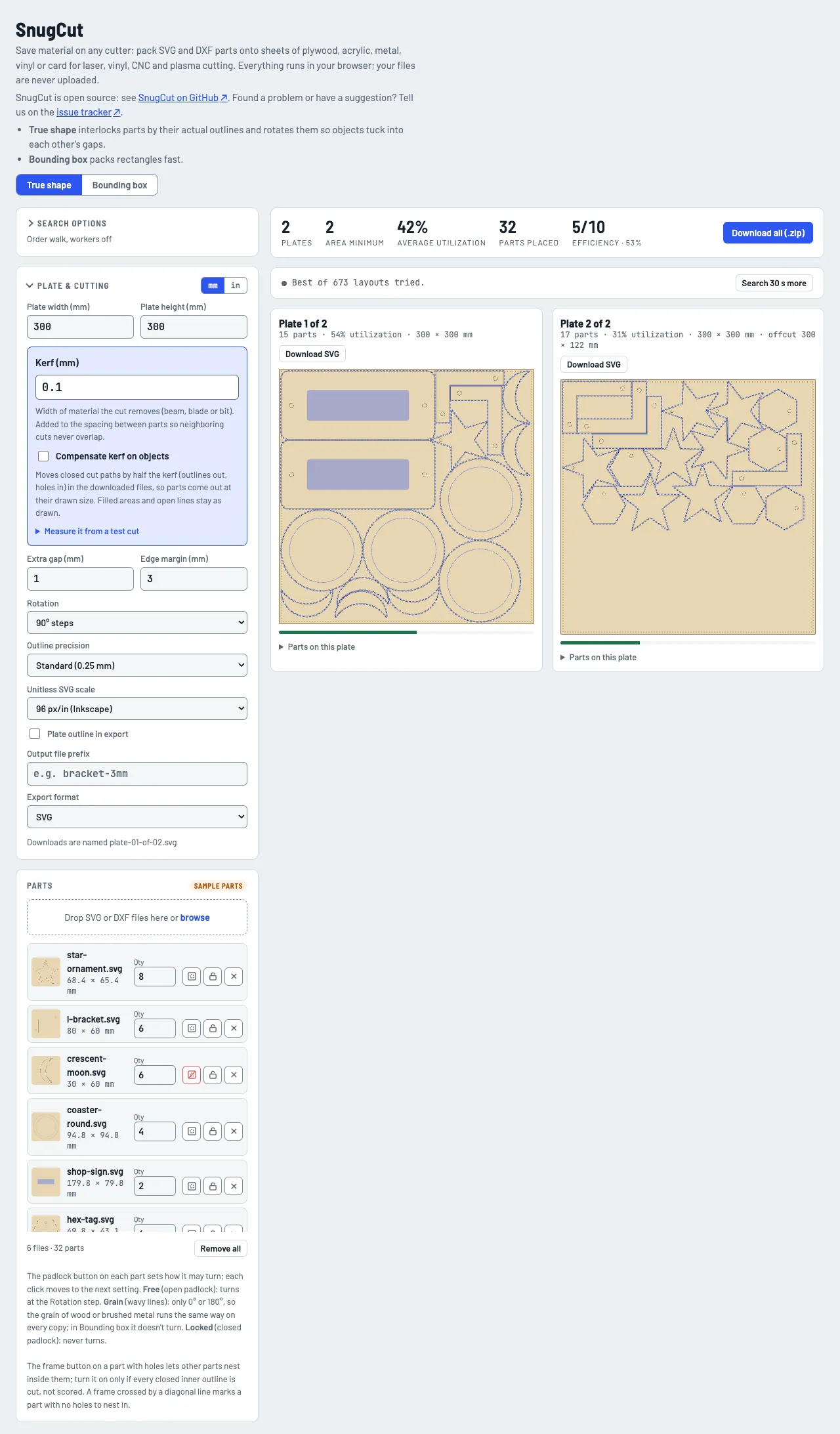
The short version: you give SnugCut the shapes you want to cut, tell it how big your sheet is, and it fits the pieces together as tightly as it can, like a puzzle. Then it hands you back a file you open in your cutter’s own software. It works for laser cutters, vinyl cutters (like a Cricut or Silhouette), CNC routers and plasma cutters.
- Try it: SnugCut on this site
- Source code: SnugCut on GitHub
- Bugs and ideas: the issue tracker
Why I Built It
While I know some people love playing Jengo with their cut objects, I’m not one of them. I was recently faced with having to lay 22 pieces across what I thought would take 6 pieces of material. So in true “take more time building the tool than to just do the thing” fashion I started vibe-coding what began as a simple layout builder. Once I saw it working in under 30 minutes I was hooked and have been tweaking since.
The SVG files it writes are checked against WeCreat MakeIT, the software for the WeCreat Vision Pro 45W, and that format is locked down so it doesn’t change out from under anyone.
How It Came Together
SnugCut started life as a single HTML page called Plate Nester. You opened it in a browser and that was it: no install, no account, no server. It got renamed to SnugCut when it became the first beta, and the “one file you can double-click” idea has stuck around ever since.
From there it moved fast:
- 1.0.0-beta was the first beta: both nesting modes, DXF import and export, cut order, and optional kerf compensation.
- 1.1.0-beta split the code into a library that does the actual nesting and an app that wraps it, which is what let me drop it into this site as an app. The single-file version is still built from the same code.
- 1.2.0-beta through 1.7.0-beta came out over the next nine days, adding nesting parts inside other parts’ holes, an efficiency rating, a smarter search, more background workers, and a long list of fixes. As of this writing the tracker has almost 300 issues on it, and all but a handful are closed.
Each release also went through a review round before it shipped, and the changelog lists every change along the way if you like reading that sort of thing.
What It Does
Two Ways to Nest
There are two modes, picked with the switch at the top of the page:

- True shape fits parts together by their real outlines and rotates them so they tuck into each other’s gaps. It’s the default, and it keeps searching for a better layout in the background while you look at the current one.
- Bounding box treats every part as a rectangle and packs those. It’s fast, and it gives the same layout for the same parts every time.
Parts Inside Parts
If a part has holes in it, like a round coaster with its middle cut out, SnugCut can nest smaller parts inside those holes instead of throwing that material away. It’s off by default, since you only want it when every inner outline actually gets cut through, and it’s a per-part button in the parts list.
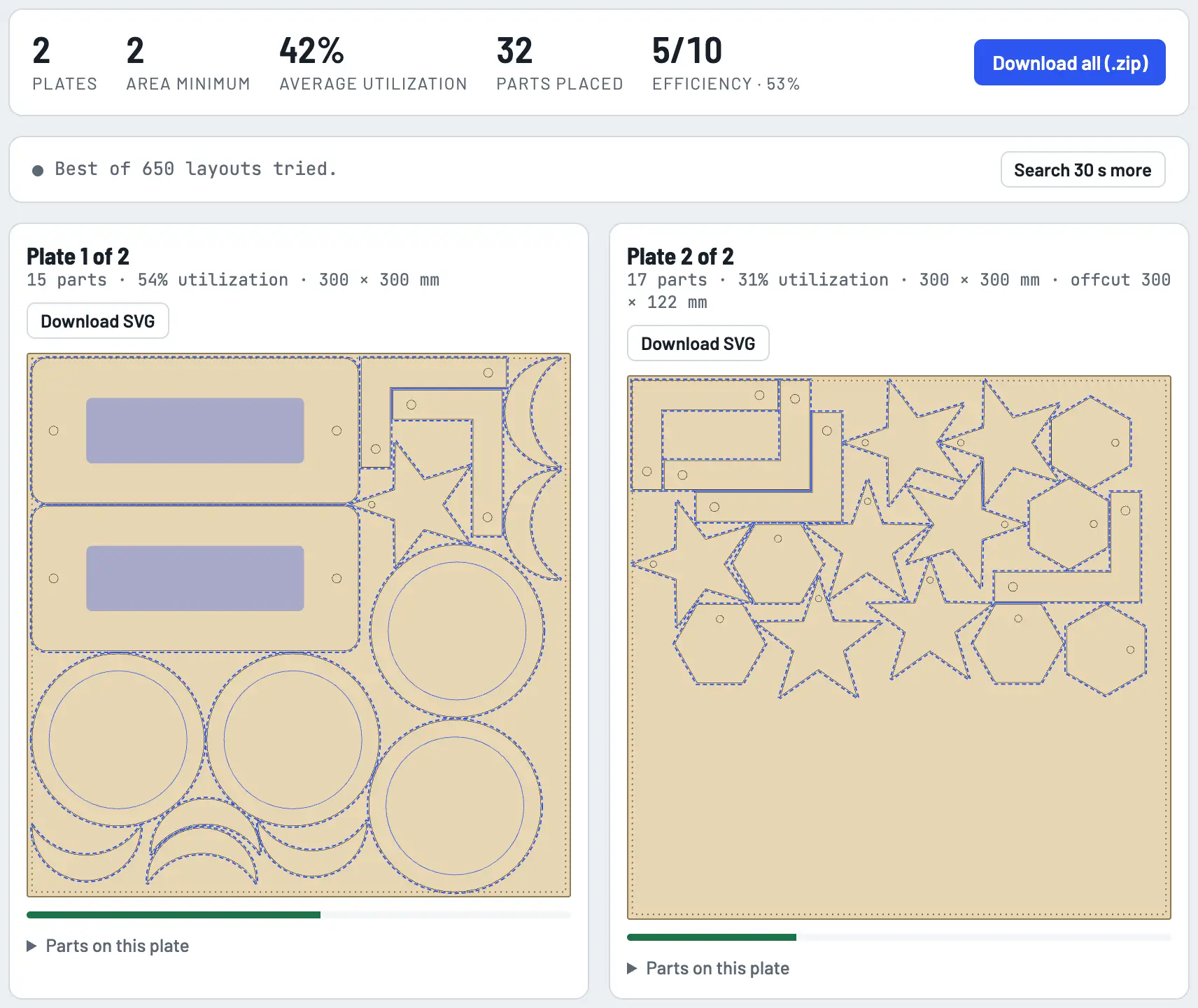
It also cuts the small parts first, before the part around them, so the inside piece can’t drop or shift before they’re free. With the sample parts, turning it on puts the stars inside the coasters and takes the efficiency from 5 out of 10 to 6.
How Well Did It Do?
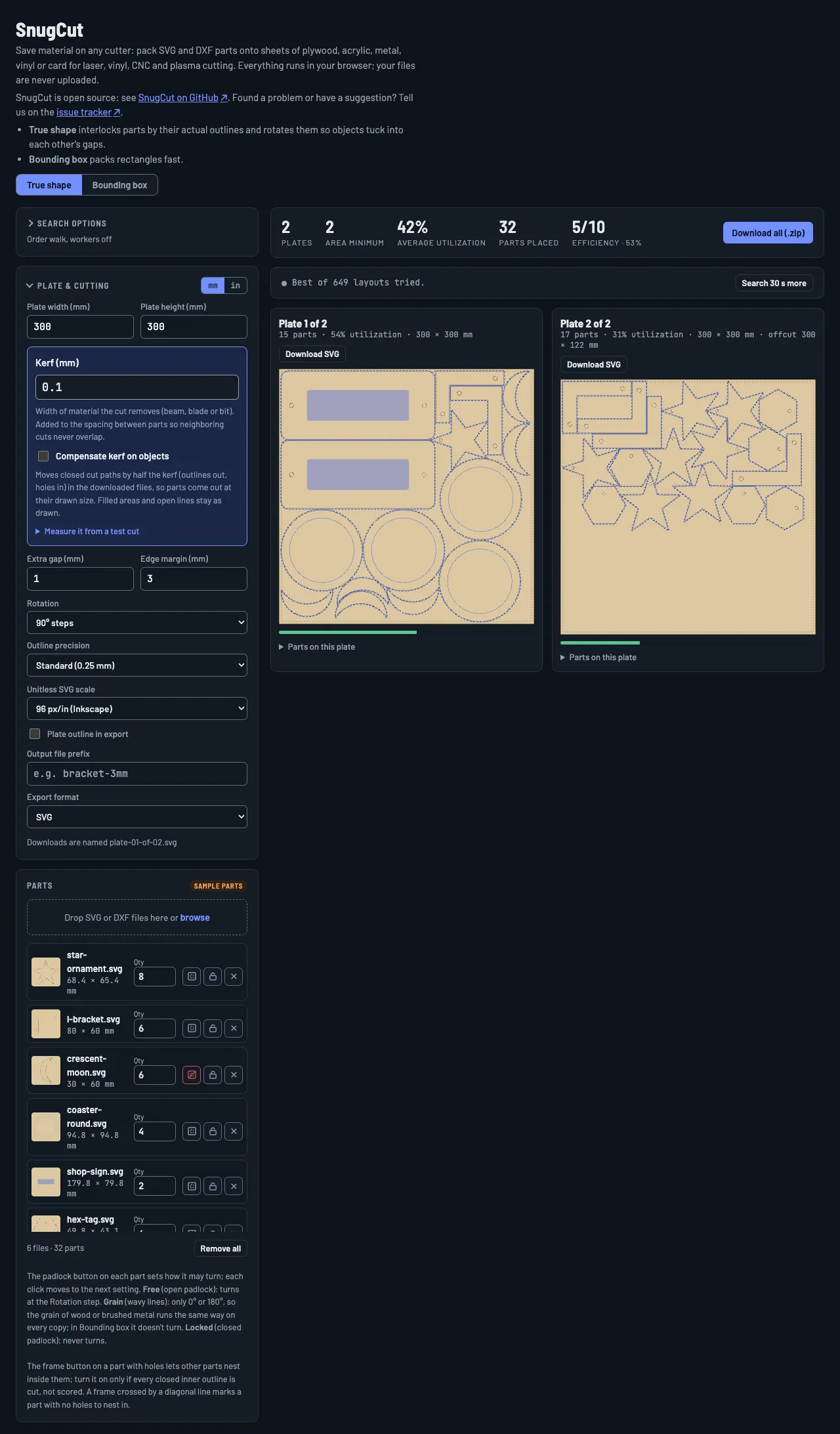
Across the top of the results you get the number of plates, the fewest plates the job could fit on by area alone, how much of each plate the parts use, and an Efficiency rating from 1 to 10. The rating counts the last plate only up to one straight cut past its parts, so a layout that leaves you a big usable offcut scores better than one that scatters parts across the whole sheet. When it thinks a longer search could save a whole plate, it says so, and the Search 30 s more button keeps going.
Your Parts, Your Way
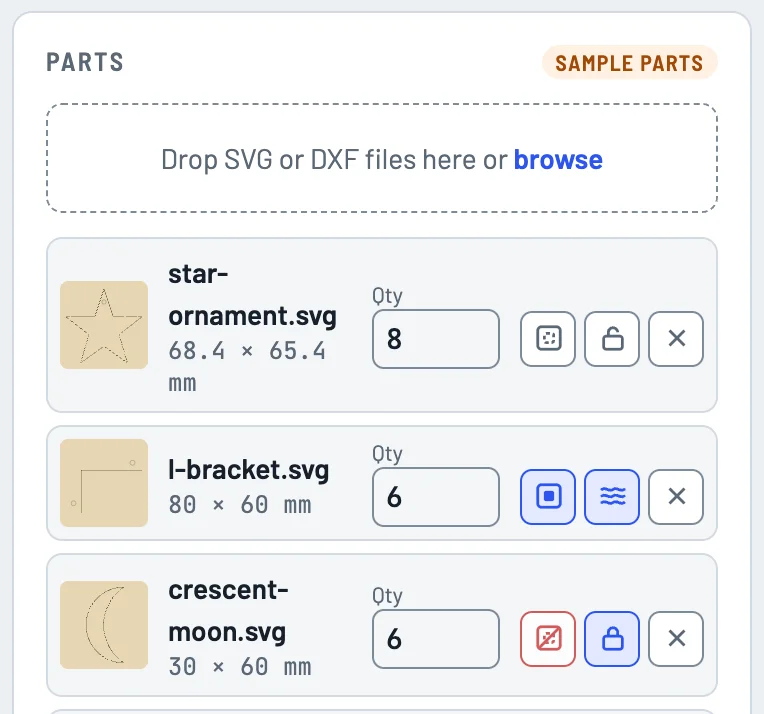
You add files by dropping them on the page or browsing for them. SVG and DXF both work, including DXF files that don’t say what units they were drawn in (there’s a menu to fix that). Each part gets a quantity and an orientation button that cycles between:
- Free: turns at whatever rotation step you’ve picked.
- Grain: only flips end for end, so wood grain or brushed metal runs the same way on every copy.
- Locked: never turns.
Plate, Kerf and Export
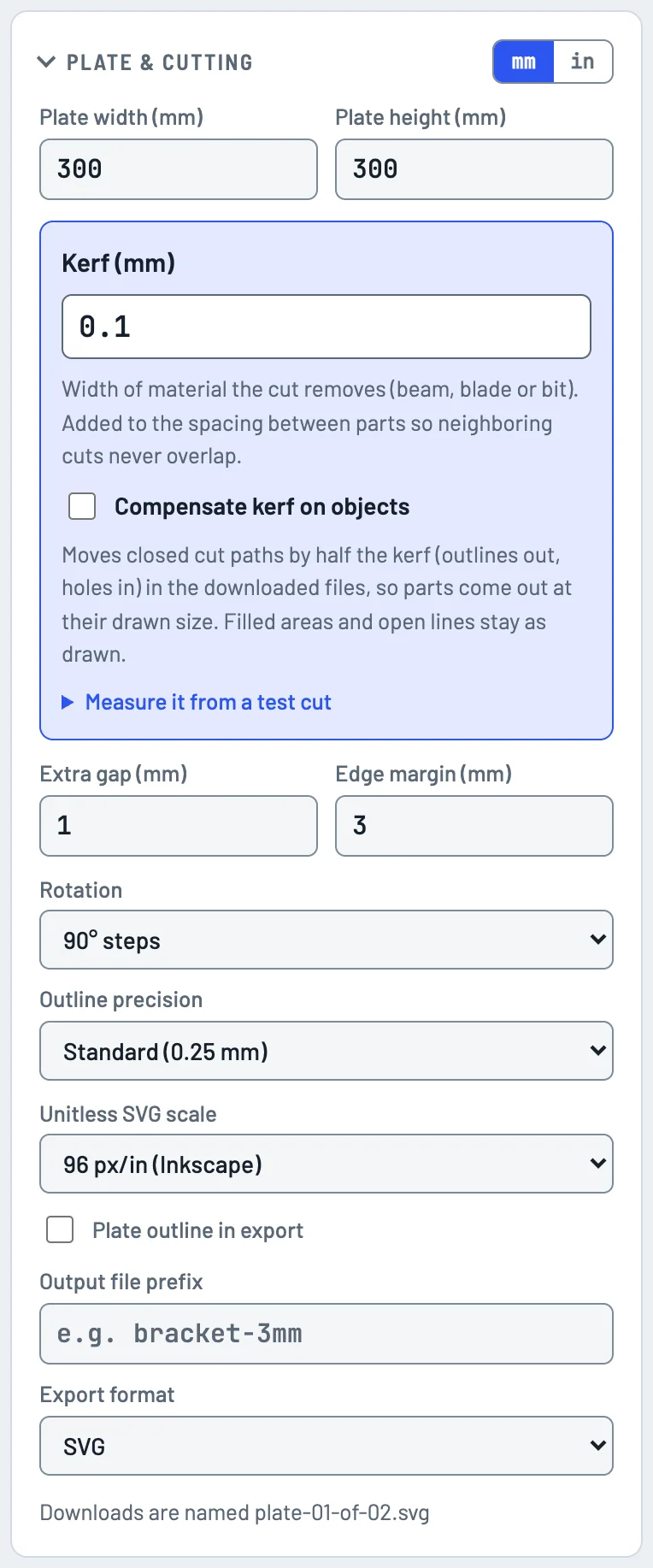
The Plate & cutting box holds the sheet size, the kerf (the width of material the beam, blade or bit removes), extra spacing, the edge margin, rotation steps, and the export format: one SVG per plate, DXF if your software prefers it, or a zip of all of them.
If you turn on Compensate kerf on objects, SnugCut builds the kerf into the files so parts come out at their drawn size. That comes with a big warning, because if you leave kerf offset on in your cutter’s software too, it gets applied twice. There’s also a helper that works the kerf out from a test cut.
Searching Harder
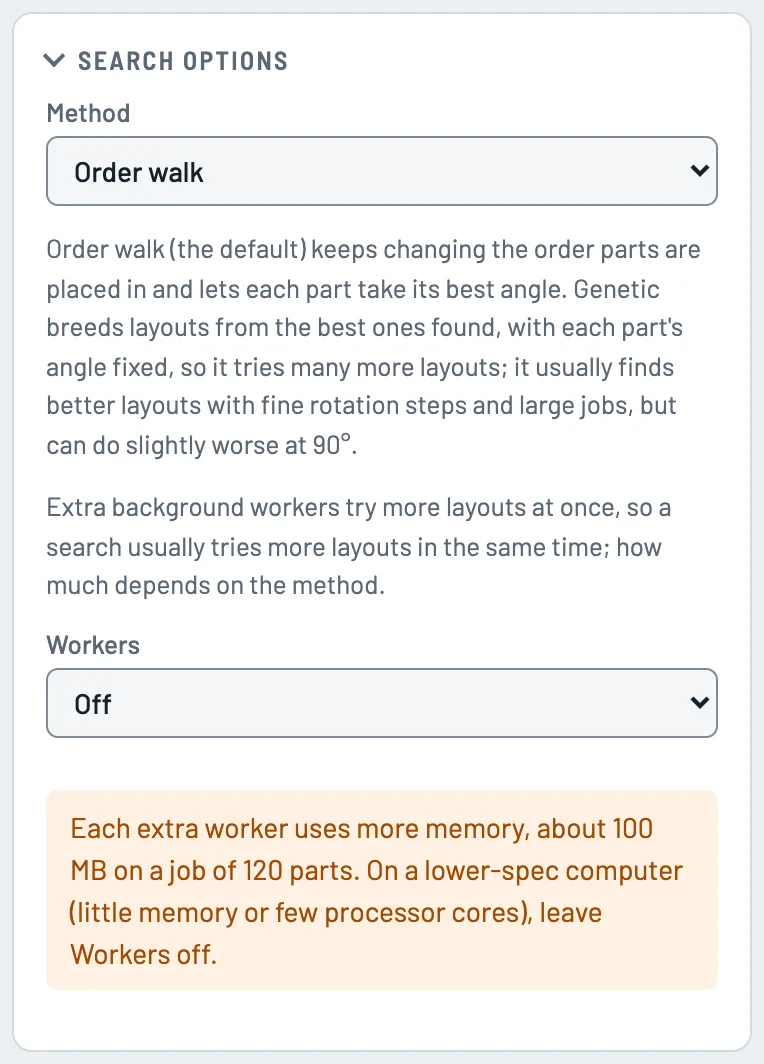
The Search Options box picks how True shape hunts for better layouts: the default walks through different part orders, while the genetic search breeds new layouts from the best ones so far and usually does better on big jobs or fine rotation steps. You can also add up to three more background workers to try more layouts in the same amount of time, if your computer has the memory to spare.
Private by Design
Everything happens in your web browser. Your files are never uploaded anywhere, and your settings are only remembered in your own browser. It also follows this site’s light and dark modes:
What’s Next
SnugCut is still in beta, so if something nests badly, a file doesn’t import the way you expect, or you have an idea, let me know on the issue tracker.
Comments
Comments are hosted by Disqus. Showing them sends your visit to Disqus and its partners.